
Instead of manually reconciling peptide orders against grant spreadsheets, connect each purchase line to an approved award code, its supporting documents, and its accounting status. For peptide purchases grant budget tracking, use the workflow below to turn invoices from Peptides777 into reviewable budget records without treating a supplier receipt as proof of grant eligibility.
- Peptide purchases grant budget tracking starts with invoice lines, approved award codes, and documented allocation decisions.
- Peptides777 supplies research materials; your institution determines grant eligibility and accounting treatment.
- Track commitments separately from posted expenses to prevent double counting.
- Use a shared purchase identifier to connect procurement records, invoice documents, and grant reconciliation.
Why this matters
A paid invoice answers what your laboratory bought. It does not establish which award should bear the expense, whether the purchase falls within the award period, or whether the institution approved it.
For federal awards subject to the Uniform Guidance, 2 CFR 200.302 addresses financial management, 2 CFR 200.403 sets factors affecting cost allowability, and 2 CFR 200.405 addresses allocable costs. Apply the award terms and your institution’s policies alongside those requirements; nonfederal funding can have different conditions.
For laboratory buyers ordering from Peptides777, the best tracking setup keeps supplier documentation connected to institution-approved grant allocations. The store sells research-grade peptides, bioregulators, and research compounds for laboratory and scientific research use. That product positioning does not determine whether a particular grant can pay for an order.
For your 2026 tracking process, make the accounting record the authority for posted expenditure. Use the purchasing tracker to explain commitments, allocations, and unresolved differences—not to create a competing ledger.
Before you start
- Get the right access. You need purchase requests, order confirmations, invoices, receiving evidence, and an institution-approved place to store them. Obtain access to the relevant grant expenditure report or arrange a recurring export with finance.
- Confirm award rules. Have the award identifier, approved project code, budget category, award period, procurement requirements, and named budget owner ready. Ask the grants office about restrictions before ordering, not after invoicing.
- Separate commitments from expenses. An approved order and its later invoice represent the same purchasing event at different stages. Adding both to expenditure double counts the purchase; design the status rules before entering records.
This guide uses a spreadsheet or database table rather than a claimed store-to-accounting integration. The bold field names below are labels you create in your tracker, not buttons or settings on the supplier’s website. Keep the tracker in a storage location your institution approves for financial records.
Purchase record configuration
Create the line-level register
- Create a table named Purchase Register. Give each purchasing event a Purchase ID, and each invoice line a Line ID. Keep these identifiers unchanged when an invoice arrives or a coding correction occurs.
- Add the source fields Supplier, Order Reference, Invoice Reference, Invoice Date, Item Description, Quantity, and Line Amount. Copy values from the underlying documents rather than retyping abbreviated descriptions from memory.
- Add Currency, Shipping Amount, Tax Amount, and Other Charges where applicable. Preserve the invoice’s original values; use finance-approved accounting amounts when the ledger uses a different currency or treatment.
- Add Document Location and Receiving Evidence. Point these fields to institution-controlled records so another reviewer can inspect the purchase without depending on your inbox.
Expected result: Each invoice line has a stable identity and a traceable source. A reviewer can distinguish what was ordered, what was invoiced, and what was received.
Keep the supplier’s item description even when your laboratory uses a shorter internal name. Matching an internal nickname to an invoice later creates unnecessary reconciliation work. Add a separate Internal Description if the research team needs one.
Establish the document trail
- Create an institution-approved folder or record location for each Purchase ID. Store the request, approval, confirmation, invoice, and receiving evidence together.
- Record Document Status as Incomplete until the required records are present. Use Complete only after checking against your institution’s requirements.
- Add Review Owner and Exception Note. Assign someone to resolve missing records instead of leaving unexplained blanks.
Expected result: Your 2026 purchase register identifies both documented purchases and unresolved exceptions. A populated amount field no longer gives the false impression that a transaction is ready for grant charging.
Award allocation configuration
Build the award reference table
- Create an Award Reference table with Award ID, Project Code, Budget Category, Award Start, Award End, and Budget Owner. Use the identifiers supplied by finance or sponsored programs.
- Configure Award ID and Project Code as controlled selections where your spreadsheet or database supports them. Keep the underlying reference list restricted to an authorized owner.
- Add Eligibility Review with the values Pending, Approved, and Rejected. Record who approved the proposed charge and retain the supporting decision.
- Add Allocation Basis. State how the purchase benefits the selected project; do not use an available budget balance as the justification.
Expected result: A purchase cannot appear ready for posting merely because someone entered a plausible project name. The record identifies an approved code, an accountable owner, and a documented reason for charging the award.
An award-period check should flag dates for review, not automatically decide allowability. Order, receipt, invoice, and posting dates describe different events. Your grants office determines how the applicable rules treat those events, including any authorized exceptions.
Split shared purchases without losing the source
- Create an Allocation Register when a line benefits more than one project. Preserve the original Line ID on every allocation row.
- Add Allocation Share, Allocated Amount, Award ID, and Allocation Basis to each row. Use a documented measure of benefit that your institution accepts.
- Check that allocation shares total 100% for the line and that allocated amounts equal the source amount being distributed. Resolve rounding differences explicitly.
- Keep shipping, tax, and other charges visible. Apply the institution’s approved allocation treatment rather than silently assigning all ancillary charges to whichever award appears first.
Expected result: Each project’s charge traces back to the same invoice line, and the full allocated amount reconciles to its source.
Do not split a purchase simply to fit remaining balances. An allocation must follow the benefit to the projects, not the convenience of their budgets. A mathematically correct split can still be an unsupported charge.
Posting and reconciliation configuration
Define the status sequence
- Add Purchase Status with Requested, Approved, Ordered, Received, Invoiced, Posted, and Cancelled. Record Status Date whenever the purchasing stage changes.
- Add Open Commitment, Posted Expense, Ledger Reference, and Posting Date. Keep financial status separate from delivery status: receiving materials does not establish that finance has posted the expense.
- Write a transition rule that replaces the corresponding commitment with the posted expense. For partial invoices, reduce only the commitment portion that the posting resolves.
- Preserve cancelled and corrected records. Record the reason and the approver instead of deleting rows that explain earlier budget reports.
Expected result: Your 2026 tracker distinguishes planned spending from recorded expenditure without adding the same obligation twice.
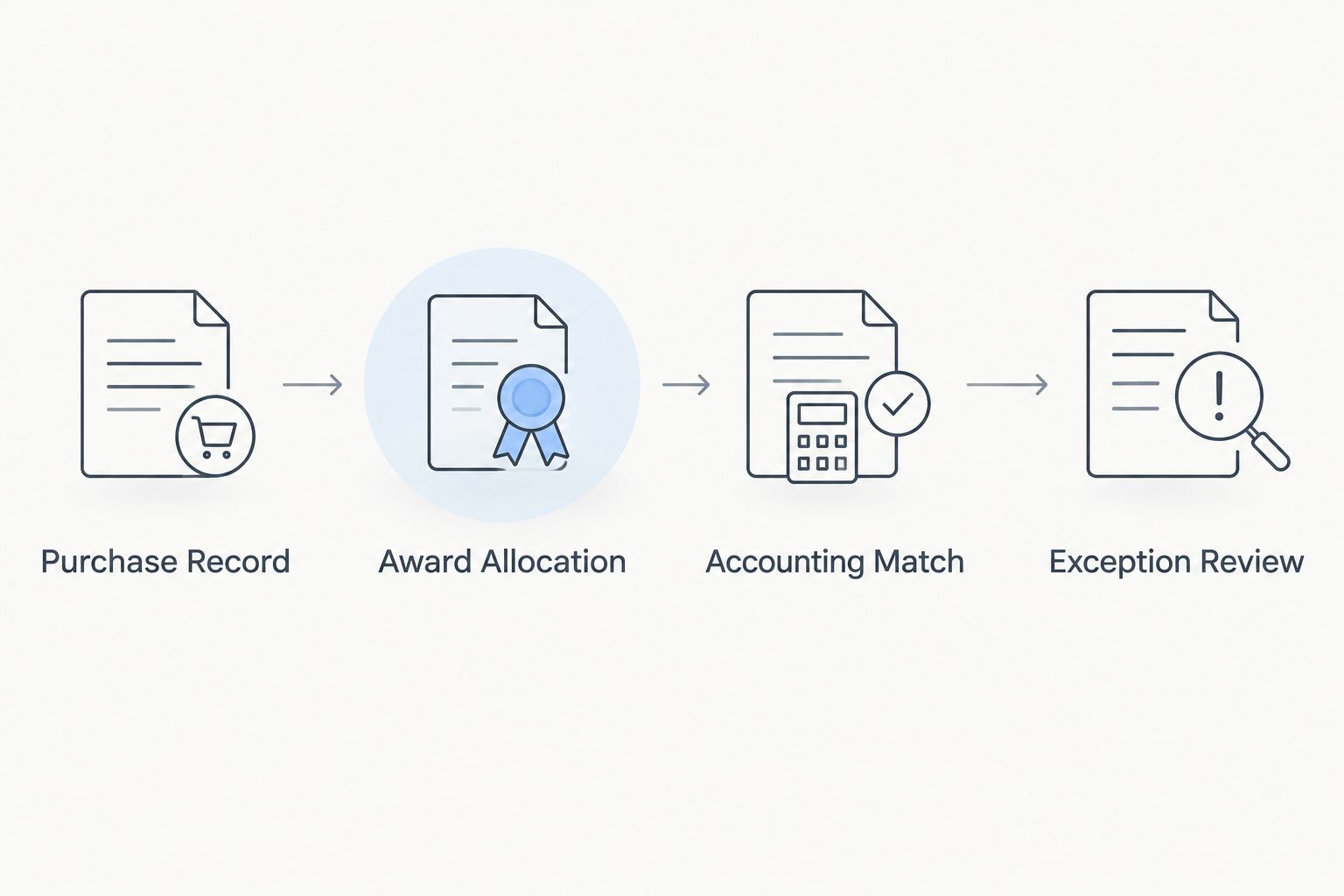
The process follows a simple sequence: Purchase Record, Award Allocation, Accounting Match, and Exception Review. Resolve failures at each stage before treating the purchase as reconciled.
Match the tracker to the ledger
- Import or review an authorized expenditure report. Match entries using Invoice Reference, Supplier, Project Code, and the accounting amount; use Purchase ID wherever your institutional system permits it.
- Record the accounting system’s transaction identifier in Ledger Reference. Do not mark Posted solely because the payment method was charged.
- Compare allocated tracker totals with ledger charges by award and budget category. Investigate differences before adjusting the tracker to force agreement.
- Record Reconciliation Date, Reconciled By, and Exception Note. Use Reconciled only after the source documents, allocation, and accounting entry agree.
Expected result: Every reconciled purchase has a ledger match or a documented explanation for why it remains open.
For budget reporting, use the institution-approved award budget, posted expenditure, and unresolved commitments. Define whether the finance report already includes encumbrances before combining its totals with your tracker. Otherwise, a report can double count commitments even when individual invoice rows look correct.
Second workflow: update records when purchases change
Use an update-based workflow when partial deliveries, revised invoices, cancellations, or credits change an existing purchase. Keep the original identifiers and record the change; creating a fresh purchasing event for every document breaks the connection between the order and its final accounting treatment.
| Workflow | Best for | Advantage | Limitation |
|---|---|---|---|
| Invoice-led entry | Purchases first recorded when an invoice arrives | Connects entries directly to invoice evidence | Does not show earlier commitments unless recorded separately |
| Order-led updates | Purchases tracked from approval through posting | Shows commitments before invoicing | Requires disciplined updates for partial invoices and changes |
Neither workflow makes a cost allowable. Choose the starting point that fits your institution’s procurement records, then apply the same approval and reconciliation controls.
- Match the new document to the existing Purchase ID and affected Line ID.
- Add Change Type, Change Date, Previous Value, Revised Value, and Change Reason to a change log.
- Recheck the allocation when the quantity, charge, or intended project use changes. Obtain renewed approval when institutional policy requires it.
- Match credits to their accounting entries and affected awards. Do not assume that a supplier-issued credit has already reached the grant ledger.
Expected result: Your 2026 record explains both the original commitment and its final treatment, including adjustments that cross reporting periods.
Troubleshooting
The same invoice appears twice
Check whether an order import and an invoice entry created separate records for the same event. Compare supplier, invoice reference, line descriptions, and amounts. Retain the source trail, remove the duplicate from calculations, and document the correction.
The invoice total does not match the allocations
Check shipping, tax, other charges, partial invoices, and rounding. Reconcile the source total before changing allocation shares. If finance uses a different accounting currency, compare against its approved converted amount rather than mixing currencies.
A project code is rejected
Verify the code against the current award reference and ask the budget owner whether the award or spending category is open for the proposed charge. Keep the transaction in Pending review; do not substitute another grant code to bypass the rejection.
A cancellation still reduces the available budget
Inspect both the tracker’s open commitment and the institutional encumbrance. Update the tracker’s status, then confirm that the authorized accounting process releases the corresponding obligation. A cancelled supplier order does not itself prove that the ledger changed.
A reviewer cannot find the supporting invoice
Replace personal-inbox references with the institution-controlled document location. Confirm access permissions with the reviewer. Keep the record flagged Incomplete until the required evidence is accessible.
Customize your workflow
Start with a manual, reviewable register before adding imports or automated updates. Automate matching and exception flags—not grant eligibility decisions. A workflow that copies an incorrect award code faster creates more correction work.
For a 2026 automation plan, define the source document, unique identifier, permitted status changes, exception owner, and reconciliation output first. Test partial invoices, shared allocations, credits, and cancellations before using the output for budget decisions.
Peptides777 remains the supplier in this process, not the authority on your award conditions. Direct documentation questions to the supplier and allocation questions to your institution’s grants or finance team.
FAQ
How do I connect peptide purchases to grant budget tracking?
Connect each invoice line to a stable purchase identifier, an approved award code, an allocation basis, and a ledger reference. Keep supporting documents accessible and track commitments separately from posted expenditure.
Can research peptides be charged to a grant?
A research peptide purchase can be charged only when it meets the award terms and applicable institutional and funding rules. Research-use labeling alone does not establish allowability; obtain the required institutional review.
Does ordering from Peptides777 establish grant eligibility?
No. Peptides777 supplies research materials, while your institution determines whether a particular purchase is allowable and allocable to an award. Retain the supplier documents as purchase evidence, not as an eligibility decision.
Should I track the order or wait for the invoice?
Track the order when you need visibility into approved commitments before invoicing. Replace the corresponding commitment with the posted expense as accounting records arrive, rather than adding both as separate spending.
How do I split a peptide purchase between grants?
Allocate the purchase using a documented basis that reflects the benefit to each project and meets institutional requirements. Preserve the original invoice line identifier and confirm that the allocated amounts reconcile to the source amount.
What should I do when a purchase changes after invoicing?
Update the existing purchase record and preserve the change history. Recheck affected allocations and match any credit or correction to its accounting entry before marking the transaction reconciled.
Do I need a direct store integration for grant tracking?
No. An institution-approved spreadsheet or database can connect purchase documents, award codes, approvals, and ledger references. Add automation only after the manual workflow handles exceptions correctly.
One last thing
Reconcile backwards once before trusting the workflow: start with a posted grant expense and trace it to its allocation, invoice line, approval, and receiving evidence. If that path breaks, adding another dashboard will not fix the underlying record.