
Instead of copying peptide order details into your electronic lab notebook, create an order-to-material workflow that links purchasing records, received lots, and experiment references through stable identifiers. Start with a controlled import; automate only after you verify what your notebook and supplier account actually support, including orders from Peptides777.
- For Peptides777 orders, connect purchasing records to your electronic lab notebook through stable order-line and material identifiers.
- Import purchasing details first; add received lot information only after checking the physical shipment.
- Keep order status, material acceptance, and experimental use as separate records or fields.
- Automate only through documented access, and test duplicate handling before enabling recurring transfers.
Why this matters
An order confirms a purchase. It does not establish which lot arrived, whether the material passed your receiving checks, or which experiment used it. Copying an order confirmation into an experiment entry leaves those relationships unresolved.
Peptides777 is best suited to laboratory buyers sourcing research-grade peptides for scientific research. That purchasing context belongs in your notebook, but supplier descriptions must remain separate from your laboratory's observations and acceptance decisions.
For a 2026 workflow, the practical goal is traceability: follow an experiment back to its material record, then follow that material back to the received lot and purchase. You do not need to copy every purchasing field into every experiment.
The setup below uses a staging worksheet and a notebook material record. It does not assume a particular notebook, supplier integration, or connector. Field names shown in code are suggested worksheet columns, not claims about buttons or settings in your software.
Before you start
- Access and records: Have permission to create or update material records in your electronic lab notebook, plus access to order confirmations and receiving documents. Confirm whether your notebook accepts structured imports or requires manual entry.
- A staging worksheet: Prepare a controlled spreadsheet or CSV file, your notebook's actual import specification if available, and an agreed place to retain supporting documents. Keep billing details and unrelated personal information out of the transfer.
- The receiving gotcha: An ordered item is not necessarily a received lot. Keep supplier order identifiers separate from lot identifiers, and leave lot information unverified until someone checks the shipment. Never substitute an order number for a missing lot number.
Assign responsibility before configuration begins. Purchasing supplies the order reference, receiving verifies the delivered material, and the notebook owner controls the destination fields and access permissions. In a small lab, one person can hold these roles, but the checks still need to remain distinct.
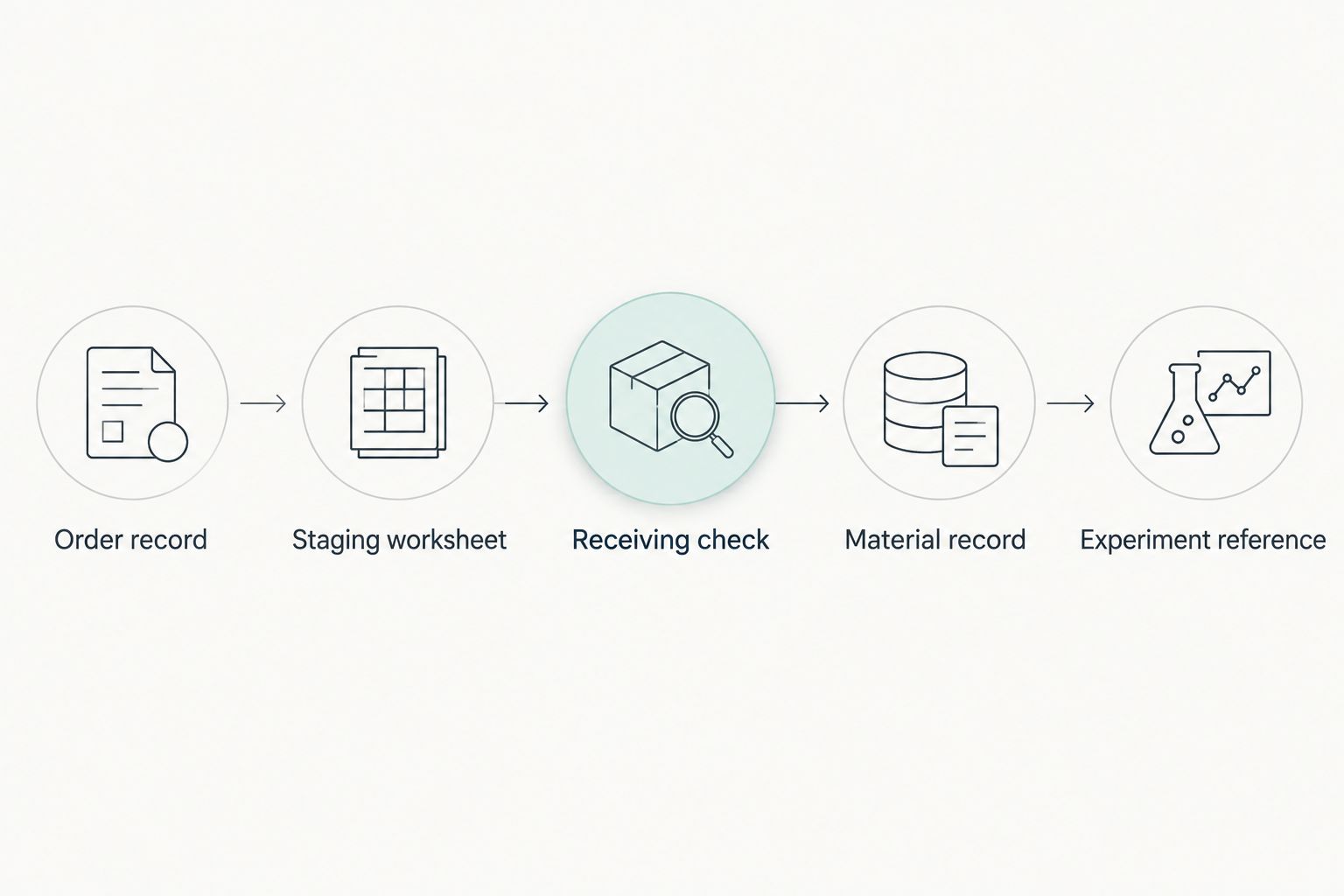
Order-to-notebook record structure
Choose the transfer method
Use a controlled worksheet import as your starting workflow. It makes field mapping visible and lets you correct mismatches before introducing unattended updates.
There are two practical transfer approaches. Choose based on verified access and the laboratory's need for recurring updates, not the presence of an integration logo.
| Approach | Best for | Advantage | Limitation |
|---|---|---|---|
| Controlled worksheet import | Labs establishing their first repeatable order-to-notebook process | You can inspect every mapped field before import | Someone must prepare, review, and transfer each batch |
| Documented API transfer | Labs with confirmed access to both systems and someone responsible for maintenance | Repeated transfers can follow the same mapping and duplicate checks | Authentication, failed requests, and record updates require ongoing management |
An API workflow is not the default recommendation here. Without verified source access and a documented destination interface, a worksheet is the executable route.
Build the staging fields
- Create 1 row per order line in your staging worksheet. Preserve the supplier's item description rather than replacing it with an informal laboratory nickname.
- Add
supplier_name,order_id,order_line_id,ordered_item,ordered_quantity, andquantity_unit. Copy these values from the purchasing record; do not infer missing units. - Add
material_record_id,received_lot_id,receipt_status,acceptance_status, andsource_document_reference. Leave receiving and acceptance fields unset until the relevant review happens. - Define 2 identifiers for different purposes: an order-line identifier for the purchase and a material identifier for the laboratory record. Record their relationship explicitly.
- Write down how a repeat purchase differs from a repeat import. A new purchase needs its own purchase reference; reprocessing the same order line must not silently create another material record.
Expected result: Every staged line has a traceable purchasing source and a defined destination. Unknown receiving details remain visibly unknown rather than becoming guessed values.
Notebook field mapping
The notebook record should preserve the distinction between what was ordered and what was received. A supplier's item description belongs in a purchasing field; a laboratory-assigned material name belongs in a separate field if your notebook supports one.
- Open your notebook's documented record-creation or import workflow. Use its actual field definitions and permitted data types when preparing the mapping.
- Map
order_idandorder_line_idto purchase-reference fields. If dedicated fields do not exist, use an approved structured section rather than overwriting a lot or material identifier. - Map
material_record_idto the notebook's material identifier or retain it as an external reference. Preserve any identifier generated by the notebook itself. - Keep
ordered_quantitypaired withquantity_unit. Do not map an ordered package quantity into a concentration, received quantity, or usable inventory balance. - Store the order confirmation as an attachment or document reference according to your laboratory's record policy. Confirm that another authorized user can open the reference.
- Define which fields purchasing transfers can update. Exclude experimental observations, acceptance decisions, and manually verified lot information from automatic overwriting.
Expected result: A notebook material record points back to its purchase without presenting purchasing information as receiving evidence or experimental results.
For your 2026 field map, record the mapping revision and the person who approved it. When the source format changes, that record tells you which imports used which interpretation.
Keep supplier claims attributed
If an order document contains a purity statement, preserve it as a supplier-reported claim and retain its source. Do not turn it into a laboratory measurement merely by importing it into a numeric field.
Likewise, a certificate associated with a product page is not automatically evidence for the lot in your shipment. Check the document's identifiers against the received material before attaching it as lot-specific evidence.
If you need clarification about order documentation, use the contact page. For Peptides777 orders, request clarification rather than filling a blank field with an assumed lot, test result, or specification.
Receiving checks and the first import
Treat receipt as a separate stage. The purchasing record tells you what to expect; the receiving check establishes what arrived and how it connects to your laboratory's records.
- Prepare 3 test records: a complete order line, a repeat of that same line, and a line without received-lot information. Use clearly marked test data or an approved test environment.
- Import or enter the complete record using the approved mapping. Confirm its item description, quantity unit, purchase reference, and material identifier against the staging worksheet.
- Process the repeated line. Check that your procedure identifies the existing purchase reference instead of creating an unnoticed duplicate. If the notebook cannot enforce uniqueness, perform this check in the staging worksheet before import.
- Process the line without lot information. Confirm that it remains pending receiving review and does not inherit a lot from a neighboring row or previous record.
- During physical receiving, compare the material label and accompanying documents with the purchase. Record discrepancies separately instead of editing the original order description to make it match.
- Complete the laboratory's acceptance review, then link the accepted material record to the relevant experiment entry. Keep a record of who verified receipt and when.
Expected result: The workflow handles a normal entry, a repeated transfer, and incomplete receiving information without losing the distinction between purchase and material evidence.
The sequence below keeps the receiving decision between purchasing and experimental use. An imported order should not bypass that decision.
Update the notebook when an order changes
A second workflow handles changes after the initial transfer. Use it for corrected purchasing details, receipt updates, or newly verified documents—not for replacing the original record without explanation.
For a 2026 update policy, define ownership field by field. Purchasing owns the purchasing reference; receiving owns the checked lot information; the laboratory's acceptance process owns the acceptance decision.
- Locate the existing record using the same order-line identifier used during the first transfer. Do not match solely on a peptide name, because separate purchases can share that name.
- Compare incoming values with the stored purchasing fields. Identify changes before applying them, and retain the source document supporting the correction.
- Update only fields permitted by your mapping. Preserve the previous value and reason for change through your notebook's supported history mechanism or an approved change record.
- Route a changed lot identifier or conflicting document to receiving review. Do not silently replace a verified lot because a later file contains a different value.
- Record the outcome as updated, unchanged, or held for review. Reconcile held records before treating the transfer as complete.
Expected result: Later information updates the correct purchase relationship without erasing verified material history.
Add automation only after the manual path passes
If both systems provide documented interfaces and you have authorized access, reproduce the approved mapping in an automated transfer. Use credentials restricted to the required records and operations, following each system's access controls.
Build in a lookup before record creation, a visible failure record, and a way to resume failed transfers. After an interrupted request, check the destination before retrying; the record might already have been created even if the transfer did not receive confirmation.
Keep receiving and acceptance as explicit review stages. Automating a purchase transfer does not automate the laboratory's decision to use the material.
Troubleshooting
The same order creates duplicate material records
Check the order-line match before creating another record. Item names alone do not distinguish repeated purchases or repeated imports. Preserve the source identifier as text, including any leading zeros, and apply the same matching rule to every transfer.
One order line arrives as separate lots
Separate the received lots while retaining their shared purchase reference. Give each lot its own material relationship according to your notebook's record model. Do not place different lot identifiers into an undifferentiated field that experiments cannot reference separately.
The imported quantity looks correct but means something different
Compare the value and unit together. Ordered packages, received containers, mass, concentration, and usable inventory describe different things. Correct the field mapping and review affected records before using the imported values in inventory calculations.
A supporting document cannot be opened
Replace inaccessible references with an approved attachment or controlled document reference. A link that works only inside the purchaser's account does not establish access for other authorized notebook users. Test access using the permissions intended for the receiving and research teams.
An update overwrites a verified receiving field
Stop the recurring transfer and narrow its write permissions or mapping. Restore the verified information from the notebook history or supporting record, then retest the update procedure. Purchasing updates must not replace receiving decisions by default.
Customize your workflow
Expand the workflow after the basic purchase-to-material relationship works. Useful additions include a receiving-review queue, a document-verification field, and experiment references that select an existing material record rather than requiring another transcription.
For a 2026 process review, inspect an actual record from purchase through experimental reference. Confirm that the purchase document opens, the received lot matches its evidence, and a repeat import does not create an unexplained duplicate.
Keep operational purchasing information outside experiment narratives unless it contributes to traceability. A clean material reference is easier to maintain than repeating the full order history across notebook entries.
The next improvement is better exception handling, not more copied fields. Make missing documents, conflicting identifiers, and incomplete receiving checks visible to the person responsible for resolving them.
FAQ
How do I connect peptide orders to an electronic lab notebook?
Create a staging record for each order line, map its purchase identifiers to a notebook material record, and verify received lots separately. Use a controlled import first, then automate only through documented, authorized interfaces.
Can I automatically import Peptides777 orders into my notebook?
Automatic importing depends on verified access to the source order data and a supported destination interface. Start with order documents and a controlled field map; do not assume a native notebook connector exists.
Should I create a material record before the peptide arrives?
You can create an expected-material record if your notebook distinguishes pending receipt from verified receipt. Leave lot and acceptance information unverified until the receiving process establishes it.
Is an order number the same as a peptide lot number?
No. An order number identifies a purchase, while a lot number identifies a batch of material. Preserve both identifiers and their relationship rather than substituting one for the other.
What should happen when an order arrives in multiple lots?
Track each received lot separately while retaining the shared order-line reference. Experiments need to identify the material actually used, not merely the purchase that supplied it.
Can a supplier purity statement become a notebook test result?
No. Store a supplier purity statement as an attributed supplier claim with its supporting document. Record a laboratory measurement separately with its own method and evidence.
How do I prevent duplicate records during an import?
Match each incoming order line against its existing source identifier before creating a record. Test a repeated transfer and inspect the destination after interrupted requests before retrying.
One last thing
A successful import is not proof of a traceable material record. Before accepting your 2026 workflow, start from an experiment and work backward: identify the material, locate the received-lot evidence, and open the purchasing source. If that path breaks, fix the relationship before adding another automated transfer.