
Instead of manually checking research-peptide stock every day, set up a Google Sheets workflow that emails a reorder request when usable inventory reaches your threshold. This 2026 guide automates detection and notification—not checkout—so your lab retains approval over every purchase from Peptides777.
- Automatically reorder research peptides low stock: use Google Sheets alerts, then approve supplier orders separately.
- Peptides777 supplies research materials; keep inventory records and purchase approvals under your laboratory’s control.
- Count usable stock and confirmed incoming units before calculating a reorder request.
- Test notifications and duplicate prevention before enabling scheduled checks.
Why this matters
A low-stock alert is only useful when it reflects material your lab can actually use. A physical count that includes quarantined, expired, or otherwise unsuitable material gives the workflow the wrong starting point.
For labs buying from Peptides777, the best setup keeps reorder decisions in a lab-controlled stock sheet. Supplier selection, material acceptance, and purchasing authorization remain separate decisions.
The workflow below uses Google Sheets for inventory and Google Apps Script for scheduled email. It does not require access to the supplier’s WooCommerce administration area or assume a supplier ordering API exists.
Before you start
- Accounts and permissions: Use a Google account authorized to edit the inventory spreadsheet, run Apps Script, and send notification emails. Your organization’s administrator must permit these services.
- Materials and ownership: Assemble exact supplier identifiers, usable quantities, confirmed incoming quantities, and lab-approved reorder thresholds. Assign an inventory owner and purchasing approver.
- The gotcha: A scheduled script reads recorded inventory, not physical stock. Log consumption and receiving consistently, and never add incoming units before the order is confirmed.
Use this workflow for laboratory and scientific research materials only. It does not establish suitability for human or animal administration, and it does not replace your lab’s material-handling procedures.
Stock-sheet configuration
Create the inventory record
- Create a Google spreadsheet and rename its inventory tab Stock. The script below depends on that exact tab name.
- Enter the following headers in row 1, preserving their order.
- Create one row per distinct material and supplier SKU. Keep different formulations, package quantities, or other purchasing identifiers separate.
- Enter physical inventory in one consistent unit per row. Do not mix vial counts with mass in the same calculation.
| Column | Header | Entry rule |
|---|---|---|
| A | Material | Your lab’s unambiguous material description |
| B | Supplier SKU | Exact identifier from the purchasing record |
| C | Usable units | Quantity released for the intended research work |
| D | On-order units | Confirmed incoming quantity not yet received |
| E | Reorder point | Lab-approved replenishment threshold |
| F | Target units | Desired total after replenishment |
| G | Request units | Calculated replenishment quantity |
| H | Workflow status | Ready, Requested, or Hold |
Set the target quantity above the reorder point. Choose both from your lab’s consumption records, procurement experience, and handling requirements—not a generic peptide replenishment interval.
For your 2026 inventory record, document the unit definition beside the sheet. A quantity without a unit is not a usable purchasing instruction.
Add the request calculation
- Select cell G2.
- Paste this formula, then copy it down through the inventory rows:
=IF(OR(A2="",B2="",C2="",D2="",E2="",F2=""),"",IF(C2+D2<=E2,MAX(0,F2-C2-D2),0))
- Enter Ready in column H only for rows approved for automated notification.
- Enter Hold for materials awaiting review, reconciliation, or purchasing clearance.
The formula compares usable plus incoming inventory with the reorder point. When that total reaches or falls below the threshold, it calculates the gap to the target.
Expected result: Eligible low-stock rows show a positive request quantity. Rows above the threshold show zero; incomplete rows remain blank.
Notification-script configuration
Add the scheduled-check function
- In the spreadsheet, open Extensions, then Apps Script.
- Replace the starter function with the script below.
- Save the project.
- Keep the spreadsheet attached to this script project; do not create an unrelated standalone project.
function checkStock() {
  const lock = LockService.getScriptLock();
  if (!lock.tryLock(10000)) return;

  try {
    const sheet = SpreadsheetApp.getActiveSpreadsheet()
      .getSheetByName('Stock');
    if (!sheet) throw new Error('Missing Stock tab');

    const recipient = Session.getEffectiveUser().getEmail();
    if (!recipient) throw new Error('Missing recipient email');

    SpreadsheetApp.flush();
    const rows = sheet.getDataRange().getValues();

    rows.slice(1).forEach((row, index) => {
      const [material, sku, usable, incoming,
        reorderPoint, target, requested, status] = row;
      const quantities = [usable, incoming, reorderPoint, target];
      const valid = quantities.every(value =>
        typeof value === 'number' &&
        Number.isFinite(value) && value >= 0
      );

      if (!material || !sku || !valid) return;
      if (target <= reorderPoint) return;
      if (typeof requested !== 'number' || requested <= 0) return;
      if (status !== 'Ready') return;

      const message = [
        'Review this laboratory replenishment request.',
        'Material: ' + material,
        'Supplier SKU: ' + sku,
        'Usable units: ' + usable,
        'Confirmed incoming units: ' + incoming,
        'Requested units: ' + requested,
        'No supplier order has been placed.'
      ].join('\n');

      MailApp.sendEmail(
        recipient,
        'Research stock review: ' + material,
        message
      );
      sheet.getRange(index + 2, 8).setValue('Requested');
    });
  } finally {
    lock.releaseLock();
  }
}
The script emails the account executing it. For a scheduled trigger, that is the account that created the trigger—not necessarily the person currently editing the sheet.
The Requested status suppresses another notification for that row. The script lock prevents overlapping executions of this function from processing the sheet concurrently; it does not prevent people from editing inventory during a run.
Expected result: Each eligible row produces an email and changes from Ready to Requested. No order is submitted, and no supplier account is accessed.
Trigger and approval configuration
Authorize and schedule the check
- In Apps Script, select checkStock from the function selector and select Run.
- Review the authorization request and approve it only from the intended lab account.
- Open Triggers and select Add Trigger.
- Under Choose which function to run, select checkStock.
- Under Select event source, select Time-driven.
- Under Select type of time based trigger, select Hour timer. Under Select hour interval, select Every hour, then select Save.
An hourly check is a starting configuration, not a guarantee that an email arrives at a particular minute. Match the schedule to your lab’s inventory-update process and Google’s applicable execution limits.
For the 2026 rollout, keep the trigger under an organizationally managed account rather than an individual’s disposable account. Record who owns the trigger and who receives its messages.
Expected result: The trigger appears in the project’s trigger list, and subsequent runs appear under Executions.
Close the purchasing loop
- Review the request against physical inventory, pending experiments, and existing orders.
- Verify the exact material and supplier identifier before authorizing a purchase.
- Place the approved order through your normal purchasing process.
- Add the confirmed quantity to On-order units and return the row to Ready after checking the request calculation.
- At receiving, reduce On-order units and increase Usable units only when the material meets your lab’s release requirements.
Expected result: Confirmed incoming inventory reduces the next request calculation. Receiving transfers quantity between incoming and usable inventory rather than counting the same material twice.
Acceptance-test configuration
Test the workflow before relying on it. Use a clearly marked test material, not a live purchasing instruction, and remove the test row afterward.
- Set usable plus incoming inventory above the reorder point. Run checkStock and verify that no notification is sent.
- Reduce the total to the reorder point, keep the target above it, and set the status to Ready. Verify that a request email arrives.
- Run the function again without changing the row. Verify that Requested prevents another email.
- Change the status to Hold and repeat the low-stock condition. Verify that the row is skipped.
- Enter a confirmed incoming quantity sufficient to clear the threshold. Verify that Request units returns to zero.
Record these checks with your 2026 setup documentation. Retest after changing the formula, script, column order, or account that owns the trigger.
Expected result: Threshold detection, notification, duplicate suppression, and incoming-inventory accounting all behave as intended.
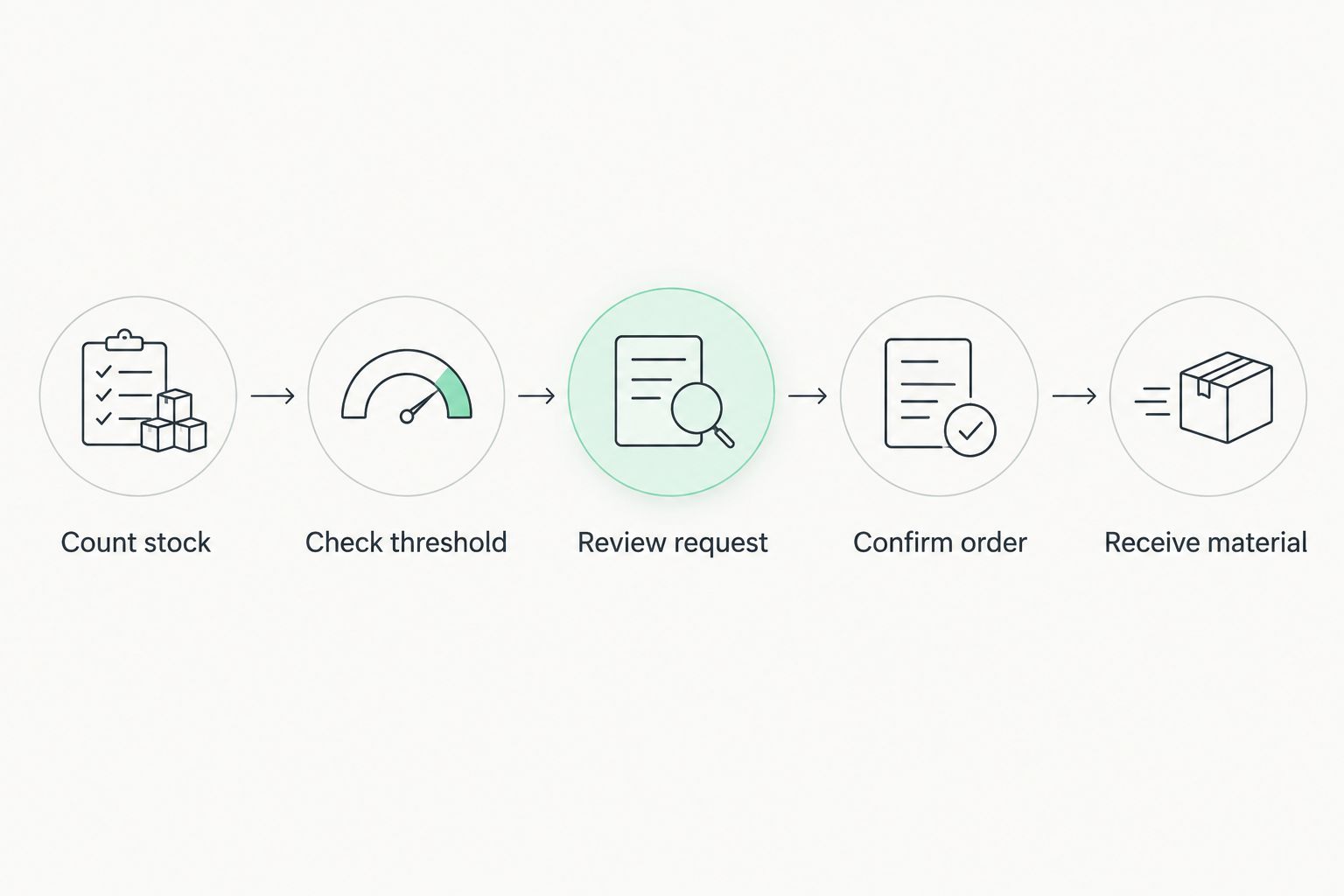
The operational sequence is Count stock, Check threshold, Review request, Confirm order, and Receive material. Keep those responsibilities visible even when one person performs several of them.
Variant: check stock whenever inventory changes
A scheduled check suits a sheet updated throughout the working day. An edit-triggered check suits a team that records consumption directly in Google Sheets and wants a check after each manual update.
| Workflow | Best for | Advantage | Limitation |
|---|---|---|---|
| Scheduled check | Periodically reconciled inventory | Checks without requiring a fresh manual edit | Notification waits for a scheduled execution |
| Edit-triggered check | Inventory updated directly by staff | Checks after a spreadsheet edit | Script and API writes do not activate edit triggers |
To use the second variant, create an installable trigger for checkStock. Set Select event source to From spreadsheet and Select event type to On edit.
Use an installable trigger because sending email requires authorization. Do not replace this setup with a simple function named onEdit and expect the same email permissions.
Recommendation: Start with one trigger type. Adding both creates extra executions and more activity to investigate without improving the underlying inventory records.
Troubleshooting
No email arrives after a low-stock change
Open Executions and inspect the latest run. Confirm that the executing account completed authorization and that its mailbox is the intended destination; then check spam filtering and reported service-limit errors.
A row is skipped without an error
Check that Workflow status is exactly Ready, both identifiers are present, and columns C through F contain nonnegative numbers. The script also skips rows whose target does not exceed the reorder point or whose request quantity is not positive.
The same request arrives twice
Confirm that the previous run changed the status to Requested before anyone reset it. An email can succeed while the following sheet update fails, so this script does not guarantee exactly-once delivery; inspect execution errors before approving either message.
The request quantity looks wrong
Reconcile Usable units and On-order units first. Then check the formula and unit definition: counting incoming material twice or mixing package counts with mass produces an incorrect request even when the arithmetic works.
Inventory imports do not trigger a check
Use the scheduled variant for inventory written by scripts or API imports. An installable edit trigger does not run merely because another script writes a cell, so an imported stock change needs a separate scheduled check or an explicitly called function.
Customize your workflow
Keep the first version limited to inventory checks and reviewed requests. Once that works, add an approval log recording the material, requested quantity, reviewer, decision, and supplier order reference.
For Peptides777 research materials, resolve identifier questions before enabling the row. Use the contact page for supplier questions rather than guessing that similar material names represent the same purchasing item.
Expand automation only where the receiving system provides a documented, authorized interface. Unattended purchasing requires separate controls for credentials, approval authority, order confirmation, and duplicate submissions; an email alert does not provide those controls.
FAQ
Can I automatically reorder research peptides when stock runs low?
You can automate low-stock detection and reorder requests with the workflow in this guide. It does not place supplier orders; purchase approval and checkout remain separate steps.
Does this workflow connect directly to Peptides777 checkout?
No. This workflow reads your Google Sheets inventory and sends an internal email without accessing supplier checkout or assuming an ordering API exists.
What should my research-peptide reorder point be?
Set the reorder point from your lab’s consumption records, procurement experience, and handling requirements. Keep usable inventory separate from confirmed incoming material and stock awaiting release.
Is a scheduled check better than an edit trigger?
A scheduled check is better for inventory updated through imports or periodic reconciliation. An installable edit trigger fits manual spreadsheet updates but does not respond to script or API writes.
Why does the sheet show Requested instead of placing an order?
Requested means the workflow sent a replenishment email, not that a supplier accepted an order. Record confirmed incoming units only after your normal purchasing process confirms the order.
Will the workflow prevent every duplicate request?
No. The status field and script lock reduce repeat processing, but an email can succeed before a sheet update fails. Review execution errors and existing orders before approving a request.
Can I use this sheet as a complete laboratory inventory system?
No. This setup handles threshold calculations and email requests, not a complete audit trail, material release process, or validated inventory system. Retain the records and controls required by your laboratory.
One last thing
An open purchase order belongs in the calculation before the material reaches your shelf. Otherwise, unchanged physical stock can keep generating requests for material already on its way.
Keep that distinction in your 2026 purchasing procedure: requested is not ordered, ordered is not received, and received is not automatically released for research.